How to link your Tapstitch designs with the products in your online store
June 24, 2025 · Updated
To ensure your custom products are properly fulfilled and shipped, it's important to correctly link your Tapstitch designs with the products in your connected store. This guide will walk you through:
- Publishing products to your store
- Updating and re-publishing designs
- Manually syncing and managing orders
🛒 How to Publish Products to Your Store
Steps:
- From the top navigation, click Catalog to browse available base products.
- Select a product (e.g., T-shirt) and enter the product editor.
- Add your custom designs, images, and text.
- Click the Push to Store button.
- Select your store platform (e.g., Shopify) and fill in product details such as title and price.
- Click Publish. The product will be automatically synced to your store.
✅ Only products published via this process will be correctly linked for order fulfillment in Tapstitch.
🎨 How to Update a Design and Re-Publish the Product
Tapstitch does not currently support editing live (already published) products. If you need to change the artwork or layout, re-publishing is required.
Suggested Process:
- Go back to Catalog and select the same product base.
- Recreate or adjust the design as needed.
- Click Push to Store to publish it as a new product (we recommend appending a version number).
- Manually unpublish or hide the older product from your store to avoid duplication.
🔄 How to Sync and Manage Orders Manually
If a customer has placed an order but it does not appear in your Tapstitch dashboard, or shows as On Hold, follow the steps below.
📌 Order Syncing & Fulfillment Operations
The animation below shows how to view and manage orders in the My Orders section, including syncing and fulfillment actions:
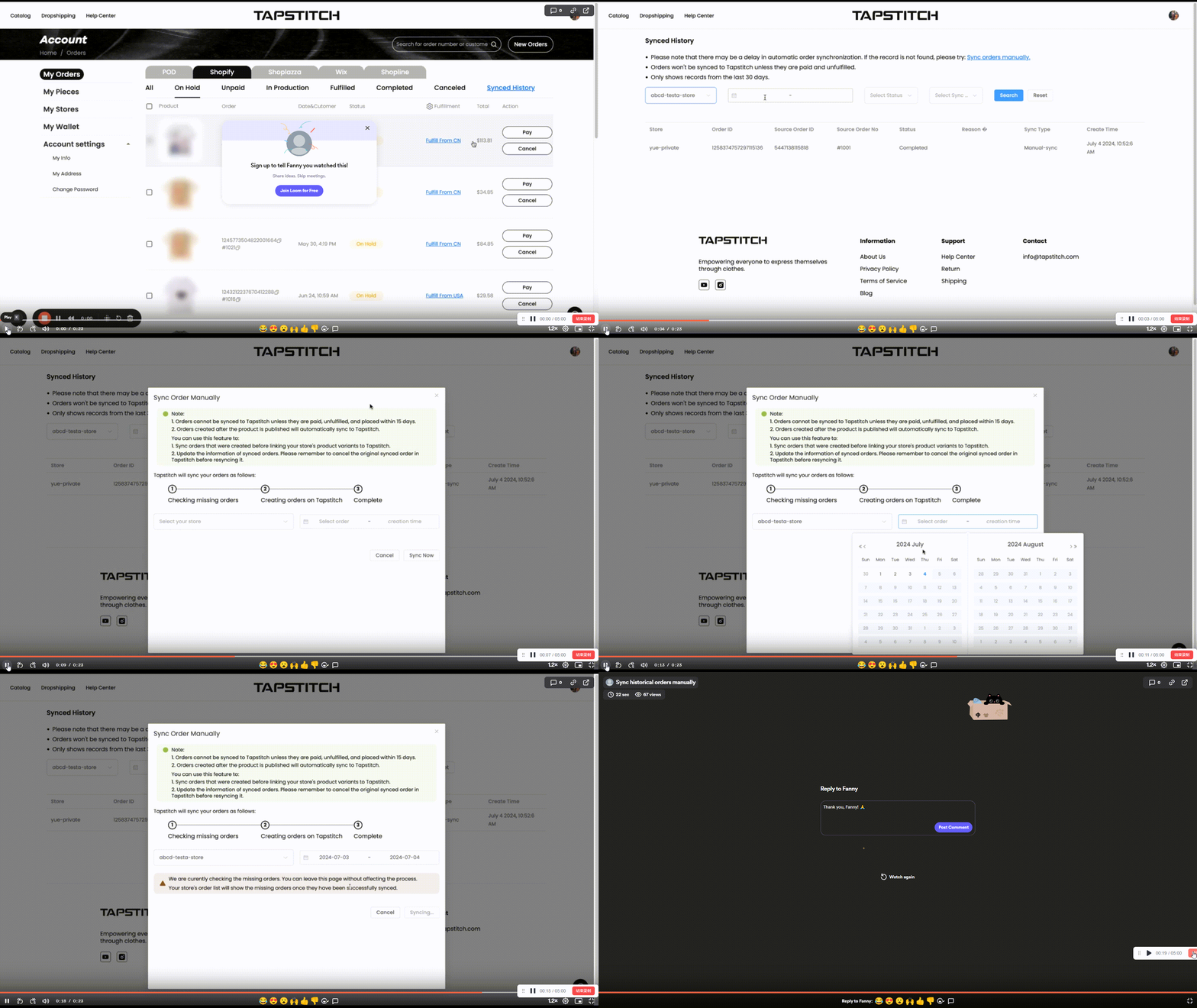
Instructions:
- Navigate to My Orders from the left menu.
- Select your connected store platform (e.g., Shopify).
- Review order status tabs: On Hold, Unpaid, Fulfilled, etc.
- If your order is missing, click New Orders in the upper right corner to sync manually.
- Once visible, you can:
- Fulfill From CN / USA – to submit for production/shipping
- Pay – to complete payment
- Cancel – if you no longer wish to fulfill the order
✅ Only paid orders for products published via Tapstitch will sync correctly.
Was this article helpful?
27 found this helpful